
To be able to send someone an encrypted message (e.g. your address to a vendor), you need their public key. In order to get a vendor’s public key you have to visit his profile and look out for a link that is named like “PGP key” or “Vendor public key”. Sometimes it is also featured directly on the vendor’s profile page.
A public key looks like this:
-----BEGIN PGP PUBLIC KEY BLOCK-----
Version: GnuPG v1

mQINBFhNDOsBEACzwJJVsMo7sIiLhvCsLx2n+DVHzw1trM/C8Yao8EmWdDYe3ei9
mXRqSudbD6S4KvJfm+ZeOlEQ6gGoG2q3aFYASRgcK7WDhs+jwG42EA+j2oIpU/EO
8EQXTmTn8T+LQT84JZ5KkiZZp2CqLU8RVszfkKEj1oX/sO5watxNQur4fbk9FiCA
1MjHMYir1g==
=TV04
-----END PGP PUBLIC KEY BLOCK-----
The gibberish part in the middle will be a bit longer though. The “Version” line may also be different or not exist at all.
- To import a key in Kleopatra first click the notepad option
- Paste the public key you want to import into the text field
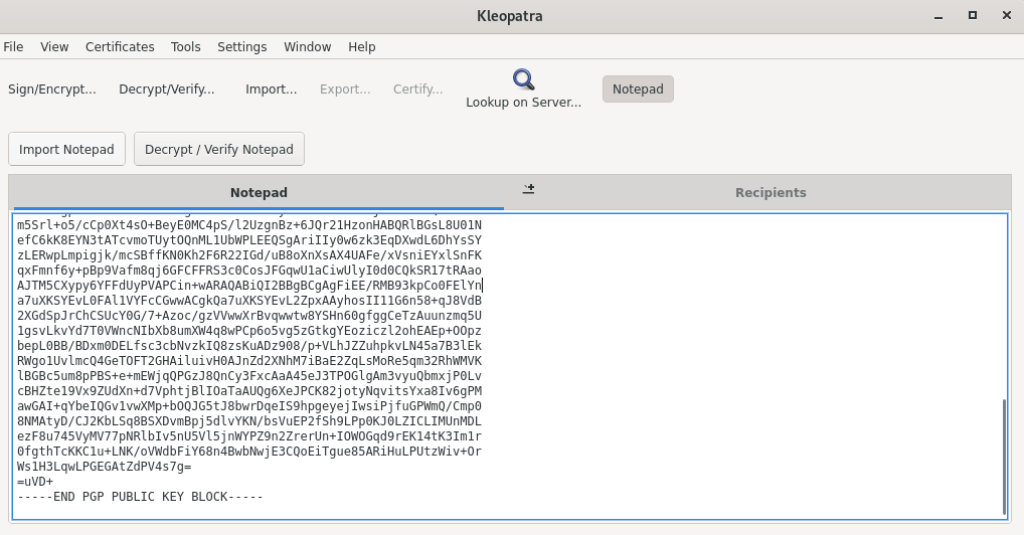
- Click the import notepad option
- A box will pop up telling you to certify the key you just imported.
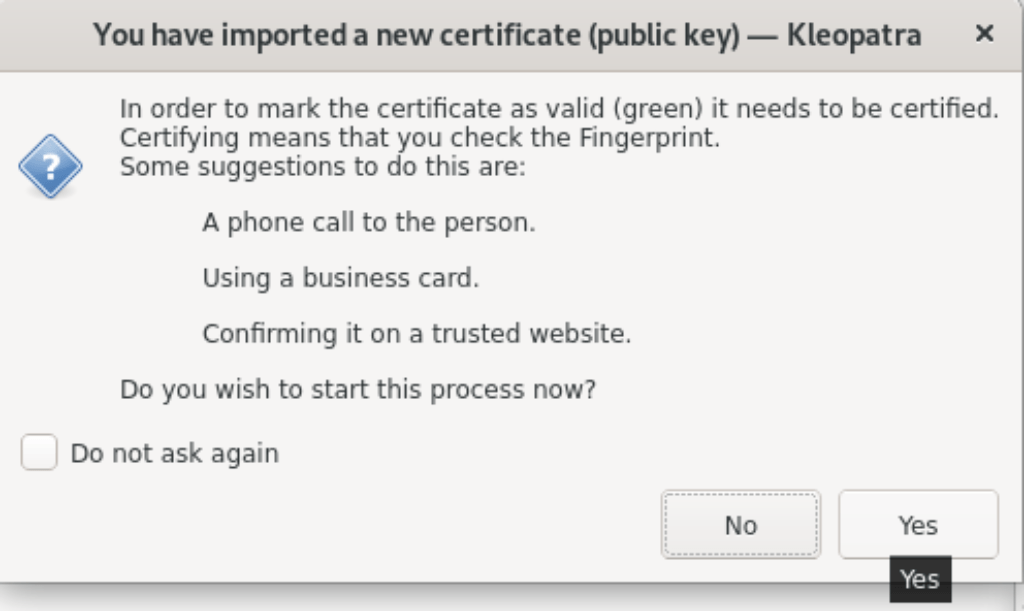
- If you are sure of the key you can click Yes then certify
- You should see cerified successful
- Click the Notepad option again to go back to your keyring. You should see the name of the key you imported.
Leave a Reply