
While fans of different operating systems might debate which one is the most stable, reliable, flexible, or user-friendly, there’s one inarguable point: Every machine – regardless of the OS – can run into issues.
And while users historically would pop a boot media disk into their CD drive, many computers no longer come with optical disk drives. As a result, booting from USB media is becoming the standard.
Booting From Mac
Getting your Mac to load from a USB drive is fairly straightforward.
- Insert the USB boot media into an open USB slot.
- Press the Power button to turn on your Mac (or Restart your Mac if it’s already on).
- When you hear the startup chime, press and hold the Option key. Holding that key gives you access to OS X’s Startup Manager. Once the Startup Manager screen appears, release the Option key. The utility will look for any available drives that include bootable content.
- Using either the pointer or arrow keys on the keyboard, select the USB drive you wish to boot from.
- Once selected, either hit the Return key or double-click your selection. The machine will start to boot from the USB drive.
NOTE: Have multiple USB devices connected to your Mac? Don’t worry. The Startup Manager only lists drives that include bootable content.
Booting From Windows
Starting your PC using USB rescue media is not difficult, although it first requires an adjustment in the BIOS (Basic Input Output System). That’s because the BIOS settings include the boot sequence the machine follows when starting up. The boot order tells the machine which devices to search for the software needed to launch the computer and the priority of each device in that search.
If you’re booting from USB media, you must change the BIOS boot order so the USB device is listed first. Otherwise, the computer will load from the hard drive as normal.
Start by plugging the thumb drive into a USB port. Then to change the BIOS boot sequence:
- Press the Power button on your computer.
- During the initial startup screen, press ESC, F1, F2, F8 or F10. (Depending on the company that created your version of BIOS, a menu may appear.)
| Computer Manufacturer | Type | Model | Boot Menu Key | BIOS Key |
| ACER | Esc, F12, F9 | Del, F2 | ||
| ACER | netbook | AspireOne, Aspire Timeline | F12 | F2 |
| ACER | netbook | Aspire v3, v5, v7 | F12 | F2 |
| APPLE | After 2006 | Option | ||
| ASUS | desktop | F8 | F9 | |
| ASUS | laptop | Esc | F2, F9 | |
| ASUS | laptop | R503C | F8 | F2, DEL |
| ASUS | netbook | Eee PC 1025c | Esc | F2 |
| COMPAQ | Presario | Esc, F9 | F10 | |
| DELL | desktop | Dimension, Inspiron, Latitude | F12 | F2 |
| DELL | desktop | Inspiron One 2020, 2305, 2320, 2330 All-In-One | F12 | F2 |
| DELL | laptop | Inspiron | F12 | F2 |
| DELL | laptop | Precision | F12 | F12 |
| EMACHINES | F12 | Tab, Del | ||
| GATEWAY | F11, Esc, F10 | F2, Del | ||
| HP | generic | Esc, F9 | Esc, F10, F1 | |
| HP | desktop | Media Center | Esc | F10 |
| HP | desktop | Pavilion 23 All In One | Esc | F10 |
| HP | desktop | Pavilion g6 and g7 | Esc | F10 |
| HP | desktop | Pavilion HPE PC, h8-1287c | Esc | Esc F10 |
| HP | desktop | Pavilion PC, p6 2317c | Esc | Esc F10 |
| HP | desktop | Pavilion PC, p7 1297cb | Esc | Esc F10 |
| HP | desktop | TouchSmart 520 PC | Esc | Esc F10 |
| HP | laptop | 2000 | Esc | Esc |
| HP | notebook | Pavilion | Esc | F10 |
| HP | notebook | ENVY dv6 and dv7 PC | Esc | Esc |
| INTEL | F10 | |||
| LENOVO | desktop | F12, F8, F10 | F1, F2 | |
| LENOVO | laptop | F12 | F1, F2 | |
| LENOVO | laptop | IdeaPad P500 | F12 or Fn + F11 | F2 |
| NEC | F5 | F2 | ||
| PACKARD BELL | F8 | F1, Del | ||
| SAMSUNG | F12, Esc | |||
| SAMSUNG | netbook | NC10 | Esc | F2 |
| SAMSUNG | ultrabook | Series 5 Ultra and Series 7 Chronos | Esc | F2 |
| SHARP | F2 | |||
| SONY | VAIO, PCG, VGN | F11, ASSIST | F1, F2, F3 | |
| SONY | VGN Esc | F10, ASSIST | F2 | |
| TOSHIBA | Protege, Satellite, Tecra | F12 | F1, Esc | |
| TOSHIBA | Equium F12 | F12 | F12 |
- When you choose to enter BIOS Setup, the setup utility page will appear.
- Using the arrow keys on your keyboard, select the BOOT tab. All of the available system devices will be displayed in order of their boot priority. You can reorder the devices here.
- Move USB to be first in the boot sequence. NOTE: If you cannot find USB or Removable Devices among the device options, your BIOS may list it under Hard Drive Devices. In that case, you’ll need to:
- Move Hard Drive Devices to the top
- Expand to show all hard drive device options
- Move the USB device to the top of that hard drive list
- Save the change and then exit the BIOS Setup.
- The computer will restart using the new settings, booting from your USB drive.
- Stay alert! Depending on your BIOS, you may be prompted with a message to Press any key to boot from an external device and you will only have a few seconds to respond. If you do nothing, your computer will go to the next device in the boot sequence list, which will likely be your hard drive.
In the future, your computer will first check the USB port for boot media when starting up. That won’t be a problem, since the BIOS will move to the next device in the boot sequence … unless you keep the boot media in the USB port. Then the system will launch from that device every time.
Connecting the Zero Trace Pen to Your Network and the Internet
You can see the status of your connection to the local network in the System menu:
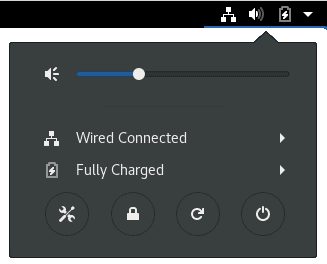
Connecting the Zero Trace Pen to your network is like any device. Once you do, it automatically connects itself to the Tor network and through that to the Internet.
You can quickly see if you are connected to the Tor network by looking at the Tor Status icon in the top Navigation Bar.
If the Zero Trace Pen is connected to the Tor network, the Tor Status icon looks like this:

If the Zero Trace Pen is not connected to the Tor network, the Tor Status icon looks like this:

Leave a Reply