
Display
By default, K-9 Mail combines the messages from your accounts into a single view called the Unified Inbox. The colored chip to the left of the subject line shows you which account owns that message.
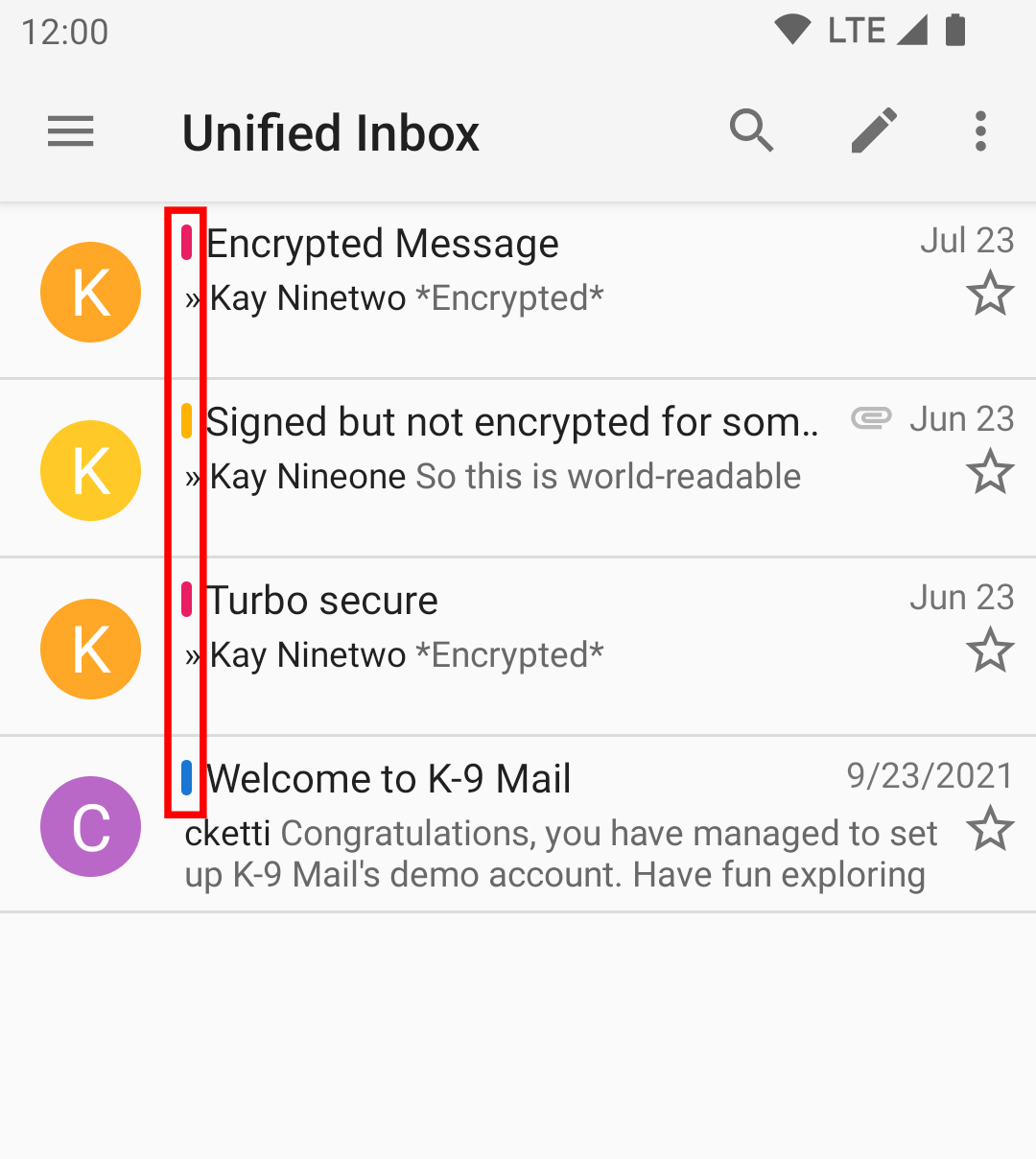
The colours match the account colours that you can see when you open the sidebar.
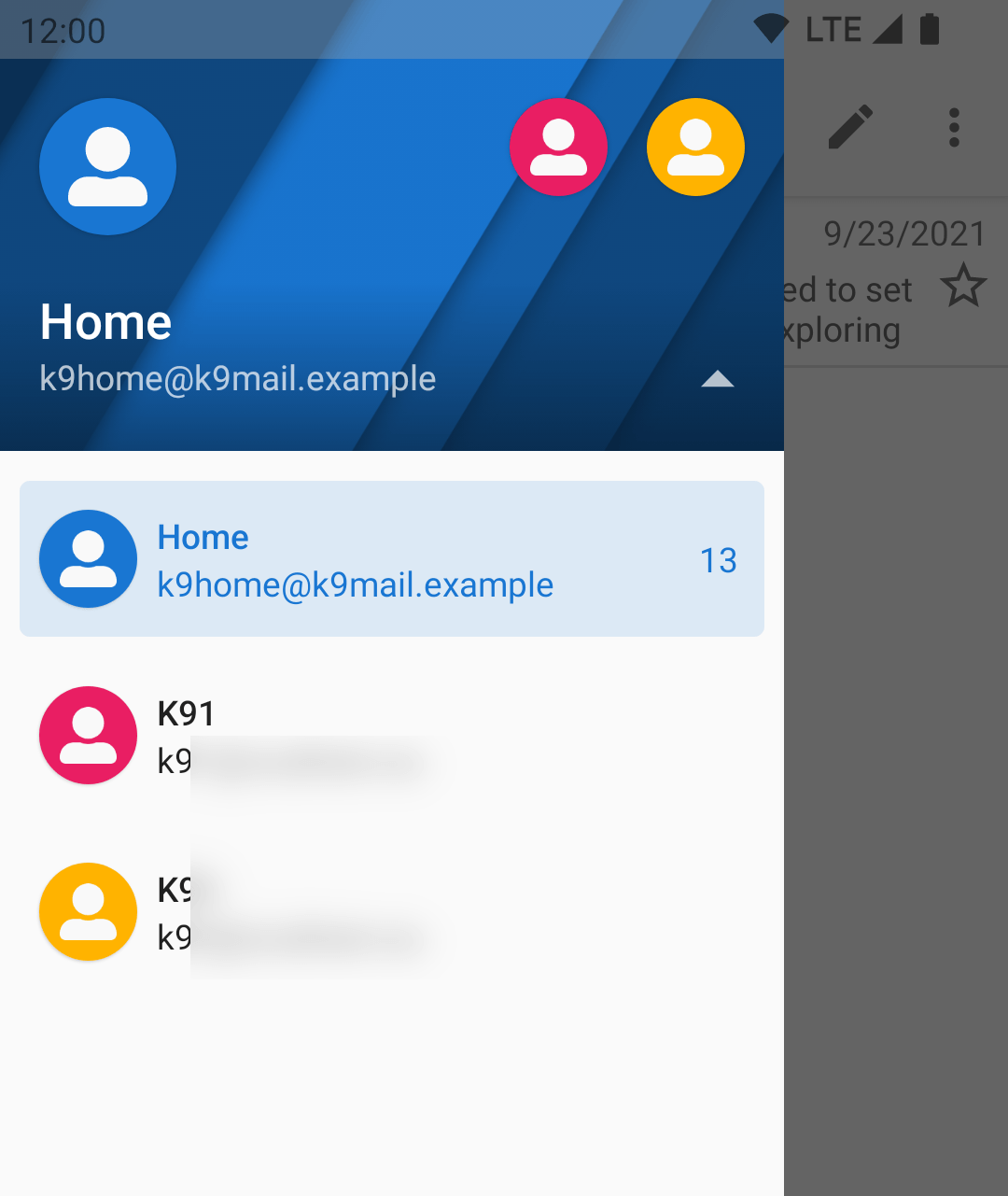
You can change these colours, see Account Color.
Adding and removing folders
You can include any folder you like in the Unified Inbox. By default, the Inbox folder of each account is included.
To add or a remove a folder, make sure you have the correct account selected in the sidebar. Then select Manage Folders -> (folder name e.g. Inbox) -> Unify.
Disabling
To disable the unified inbox, go to Settings -> General Settings -> Display -> Account List -> Show Unified Inbox. See also the documentation page Settings.
Leave a Reply